In the world of database management, backups are a cornerstone of data security and disaster recovery. MySQL, a widely used open-source relational database management system, offers powerful tools to create and restore backups efficiently. This comprehensive guide will delve into the mysqldump command, a versatile utility for backing up and restoring MySQL databases. We’ll cover various use cases, from backing up a single table to restoring an entire database.
Backing up your MySQL databases is essential for protecting your data against accidental loss, corruption, or system failures. This guide will walk you through the process of using the mysqldump command to back up and restore your MySQL databases, covering various scenarios such as backing up a single database, multiple databases, and all databases. We’ll also explore how to restore databases and specific tables, and provide tips for beginners and advanced users alike.
Understanding mysqldump
mysqldump is a command-line tool that generates SQL dump files containing the database structure (schema) and data. These dump files can be used to restore the database to its original state or to create a new database with the same structure and data.
Backup a Single Database
To back up a single MySQL database, use the following command:
mysqldump -u [username] -p [database_name] > [backup_file.sql]
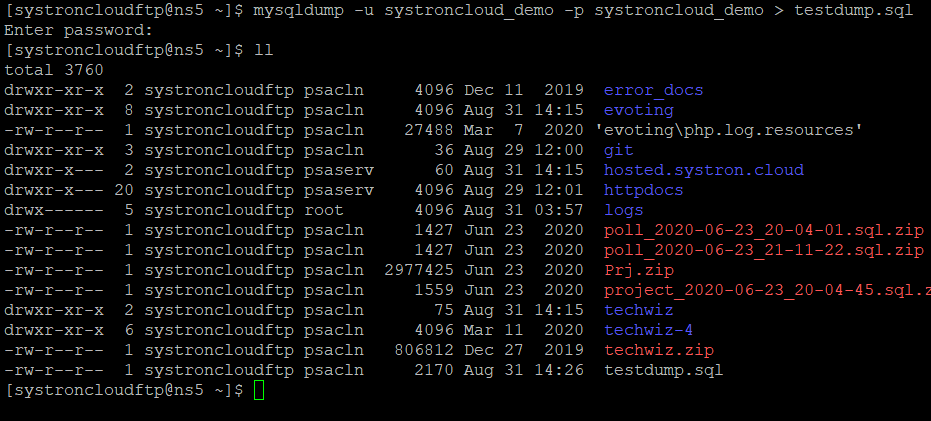
Replace [username] with your MySQL username, [database_name] with the name of the database you want to back up, and [backup_file.sql] with the name of the file to which you want to save the backup.
Backup Multiple Databases
To back up multiple databases, specify them in the mysqldump command as shown below:
mysqldump -u [username] -p --databases [database_name1] [database_name2] > [backup_file.sql]
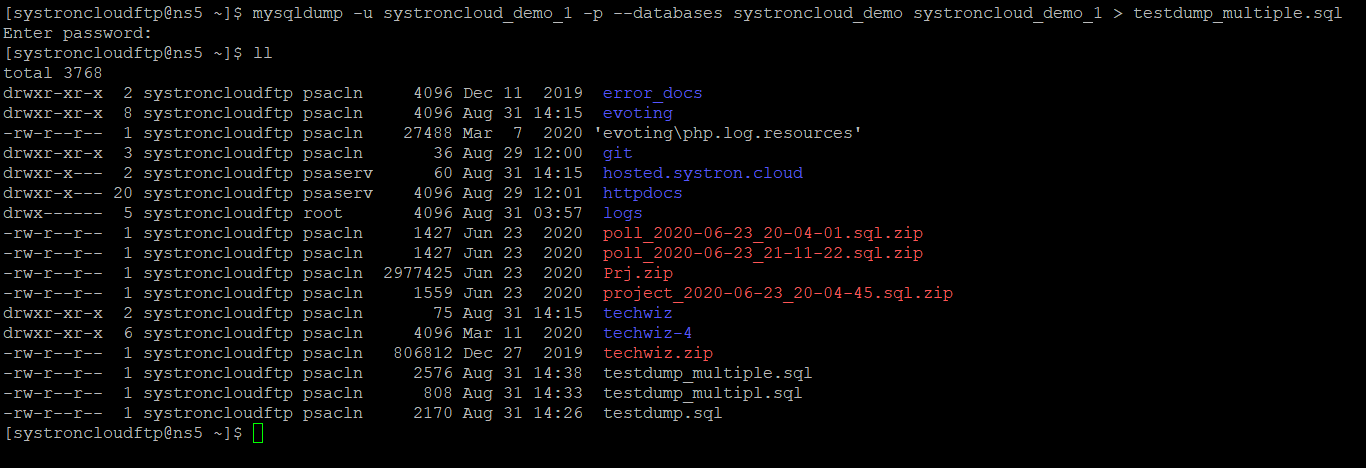
List the databases you want to back up after the --databases flag, separated by spaces.
Backup All Databases
To back up all MySQL databases on your server, use this command:
mysqldump -u [username] -p --all-databases > [backup_file.sql]
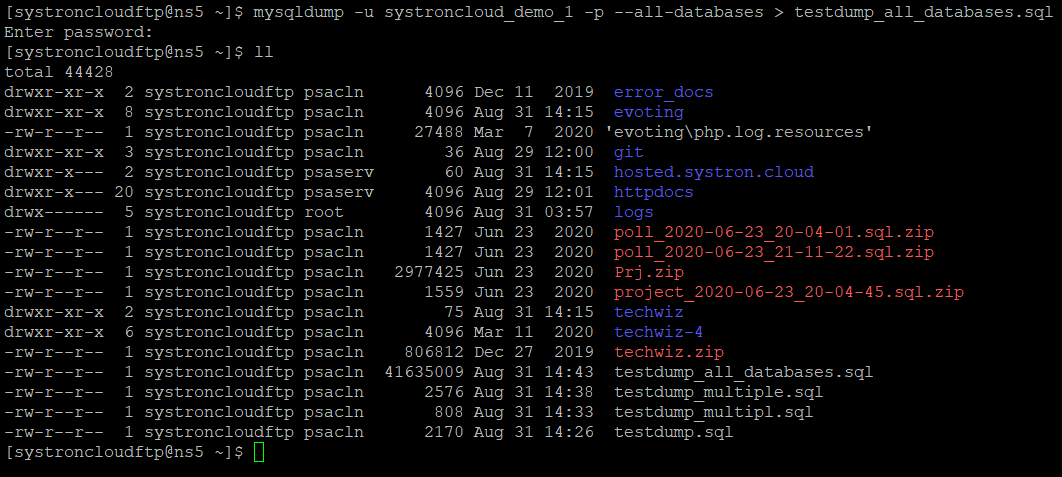
This command backs up every database on the MySQL server to a single SQL file.
Backup Database Structure Only
To back up just the structure (schema) of a database without the data, use:
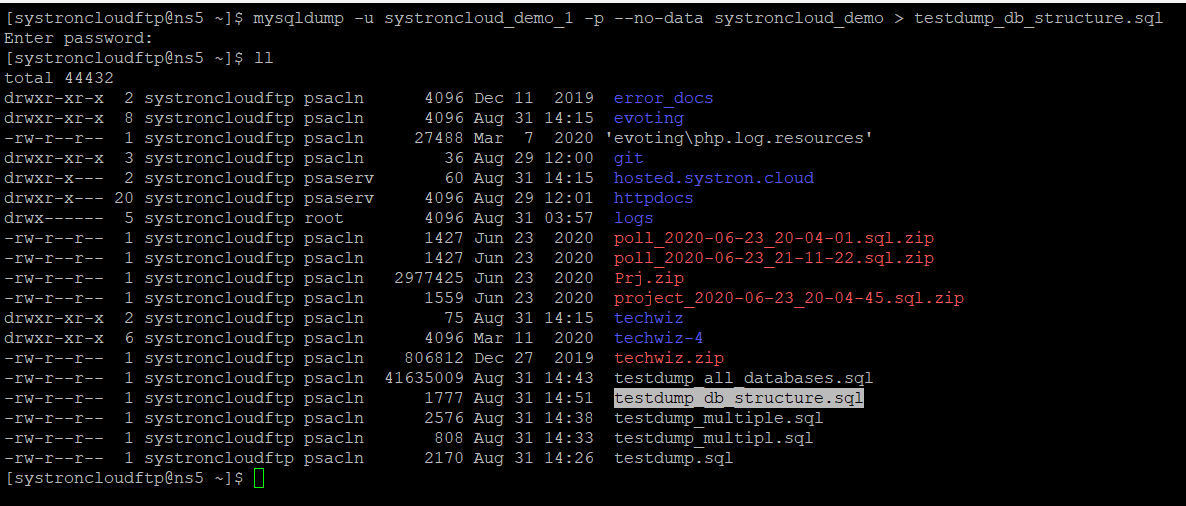
The --no-data flag ensures that only the database structure is backed up, excluding the data.
Backup a Specific Table
If you need to back up a specific table within a database, use this command:
mysqldump -u [username] -p [database_name] [table_name] > [backup_file.sql]
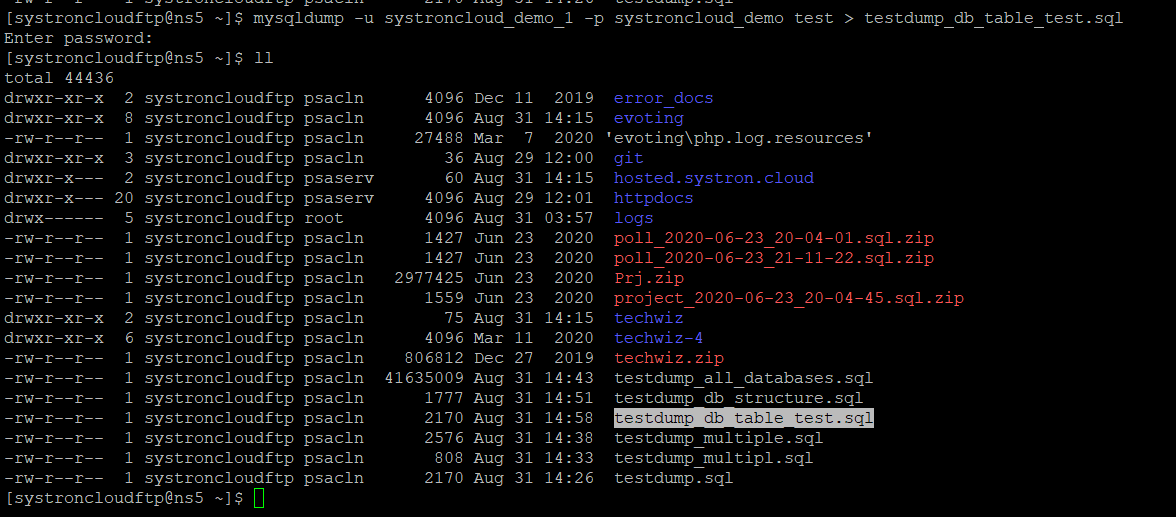
Replace [table_name] with the name of the table you wish to back up.
Backup Database Data Only
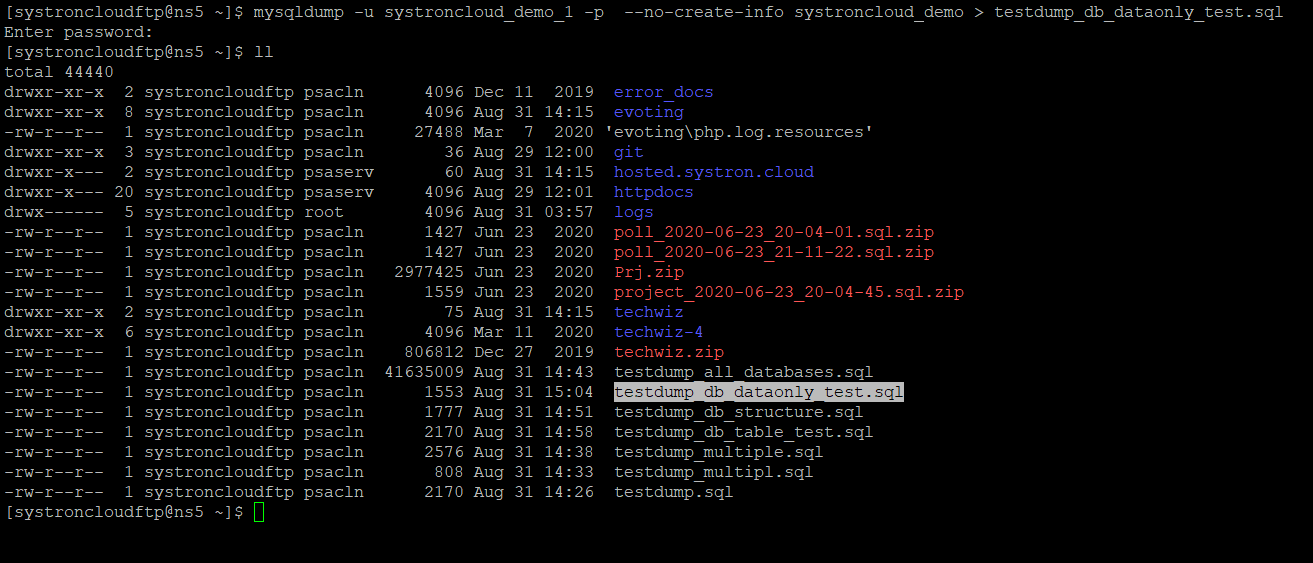
To back up only the data without the structure, run:
mysqldump -u [username] -p --no-create-info [database_name] > [backup_file.sql]
class=”img-responsive”
The --no-create-info flag excludes the table creation statements from the backup.
Restore a MySQL Database
To restore a MySQL database from a backup file, use the following command:
mysql -u [username] -p [database_name] < [backup_file.sql]
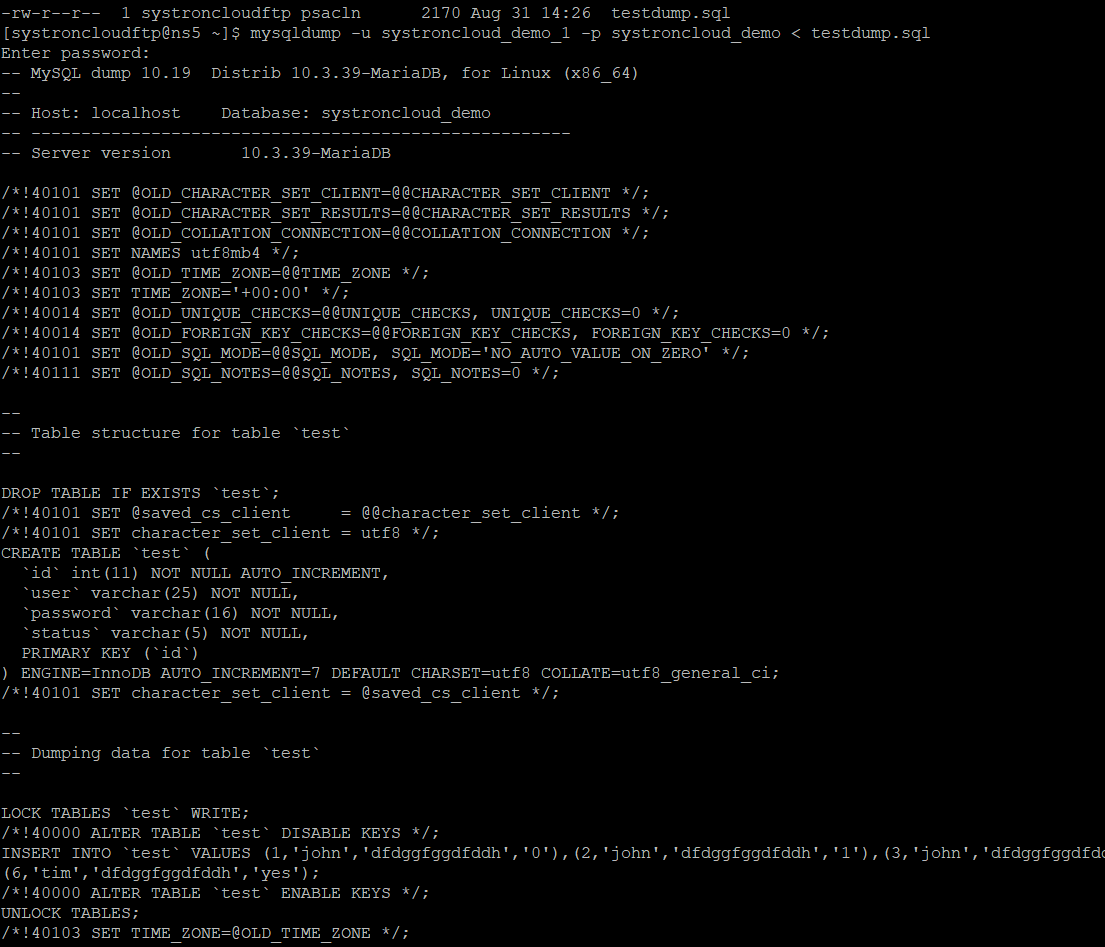
Ensure the database exists before restoring it. You can create the database with this command:
mysql -u [username] -p -e "CREATE DATABASE [database_name];"
Restore a Specific Table in the Database
To restore a specific table from a backup file, ensure the backup file contains only the data for that table and use:
mysql -u [username] -p [database_name] < [backup_file.sql]
Using phpMyAdmin for Backup and Restore
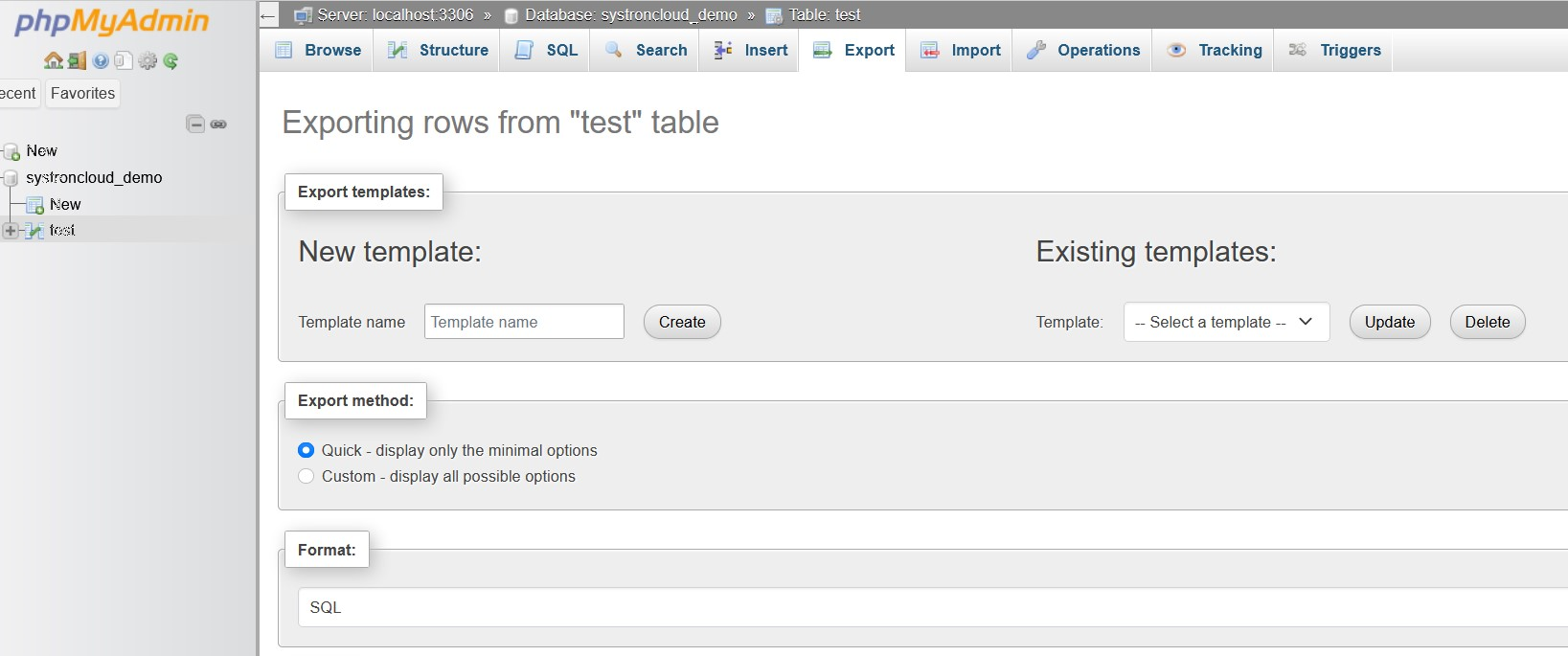
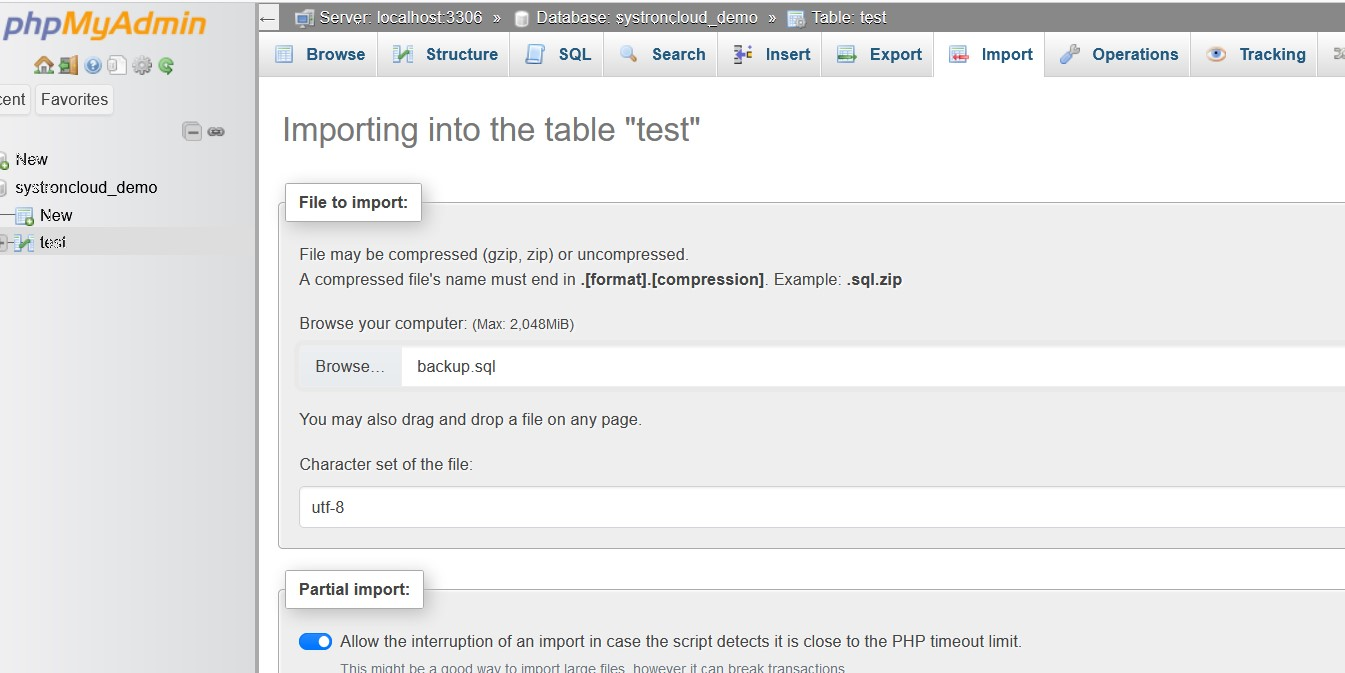
If you prefer a graphical interface, phpMyAdmin makes it easy to back up and restore MySQL databases:
- Backup: Log in to phpMyAdmin, select the database you want to back up, click the “Export” tab, choose the export method and format, and click “Go” to download the backup file.
- Restore: Log in to phpMyAdmin, select the database, click the “Import” tab, choose the backup file to upload, and click “Go” to restore the database.
Additional Tips and Tools
- Compression: Compress the dump files using tools like
gziporbzip2to save storage space and improve backup performance. - Scheduling: Automate backups using tools like
cronon Linux orTask Scheduleron Windows. - Backup Rotation: Implement a backup rotation strategy to retain multiple versions of your database.
- Cloud Storage: Consider storing backups in cloud storage services like Amazon S3 or Google Cloud Storage for off-site redundancy.
Free and Open Source Tools to Manage MySQL Databases
Here are some popular free and open-source tools to help you manage MySQL databases:
- phpMyAdmin: A widely-used web-based interface for managing MySQL databases.
- Adminer: A lightweight alternative to phpMyAdmin with a simple and intuitive interface.
- MySQL Workbench: A powerful desktop application for database design, administration, and development.
- DBeaver: An open-source database tool that supports multiple database types, including MySQL.
- Percona XtraBackup: A high-performance, online backup solution for MySQL.
- Xtrabackup-ZFS: Integrates Xtrabackup with ZFS for efficient storage and snapshotting.
Advanced Features for Seasoned Developers
For experienced developers, MySQL offers advanced features such as:
- Replication: Set up master-slave replication for real-time backups and failover. Use MySQL replication to create a secondary server and take backups from it, minimizing downtime.
- Triggers: Automate actions in your database with triggers that execute in response to specific events.
- Stored Procedures: Create reusable SQL code blocks with stored procedures for more efficient database management.
- Partitioning: Improve performance by partitioning large tables into smaller, more manageable pieces.
- Event-Based Backups: Trigger backups based on specific events, such as database changes or scheduled intervals.
- Incremental Backups: Back up only the changes since the last full backup to reduce backup time and storage requirements.